Why teachers like visual timers
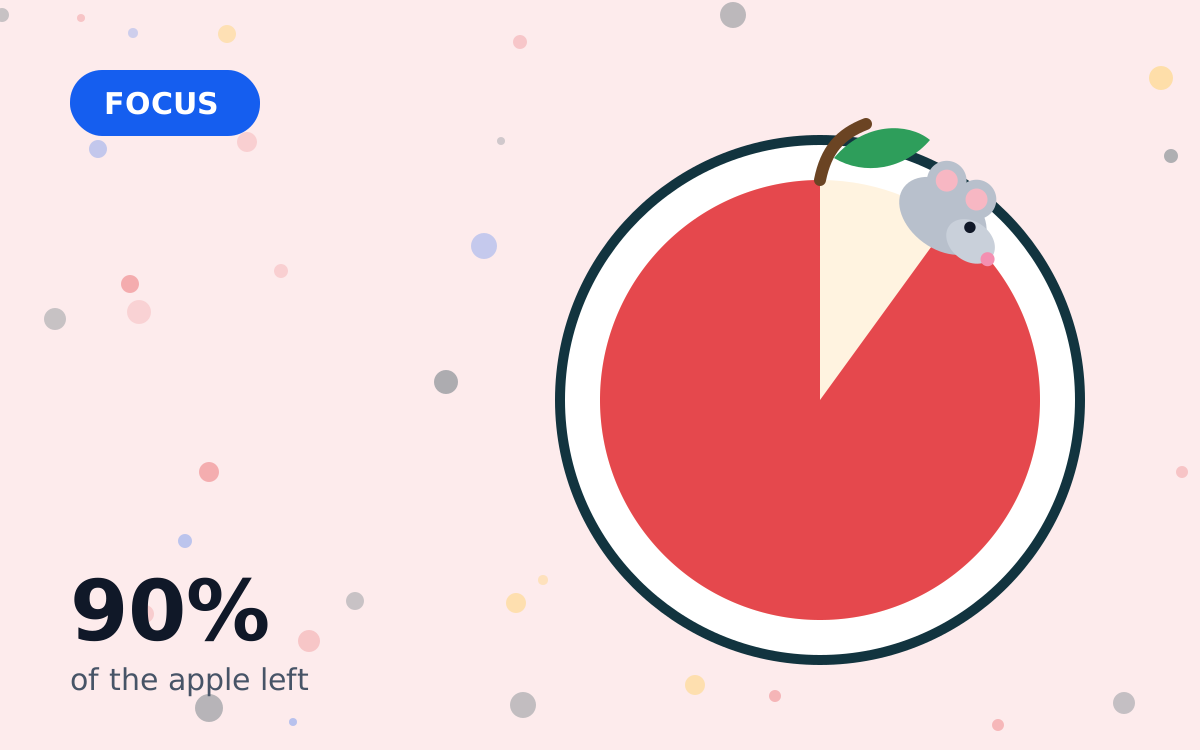
A countdown on the board answers “how long do we have?” before anyone asks. It keeps activities on time, makes expectations clear and gives the whole class the same reference point. A mouse eating an apple is also more appealing for younger pupils than a plain number, and it's readable from across the room even by children who can't yet tell the time.
Setting up on a classroom screen
- Open the online Mouse Timer on the classroom computer.
- Click Big screen so the apple fills the projector or interactive whiteboard.
- Test the chime with the room speakers.
- Use the quick buttons for common times, or type a custom time.
- Press Space to start and pause without hunting for the button.
If your school uses tablets, the official app can sit on a stand at a group table — the screen stays on while the timer runs.
Twelve classroom ideas
- Bell work: a 5 minute starter while the register is taken.
- Think-pair-share: 2 minutes thinking, 3 minutes sharing.
- Group tasks: a 15 minute apple keeps groups on pace.
- Station rotations: one apple per station, then rotate.
- Tidy-up challenge: “beat the mouse” to the end of the apple.
- Silent reading: a 10–20 minute calm countdown.
- Brain breaks: a 2–3 minute movement break between tasks.
- Calm-down corner: a short apple for a quiet reset.
- Presentations: each speaker gets one apple.
- Writing sprints: 10 minutes of non-stop writing.
- Practice tests: show remaining time without a ticking clock.
- Waiting time: before assembly or home time, so pupils know how long is left.
Suggested times
| Activity | Suggested time |
|---|---|
| Starter / bell work | 5 minutes |
| Think-pair-share | 2 + 3 minutes |
| Station rotation | 10–15 minutes |
| Silent reading | 10–20 minutes |
| Brain break | 2–3 minutes |
| Tidy-up | 3–5 minutes |
Supporting every pupil
Visual timers are a common part of inclusive classroom practice because they make time predictable for everyone. Pair the timer with a simple visual schedule of the lesson, give a verbal warning when the apple is half gone, and let pupils who find transitions difficult press Start themselves. These are general teaching strategies; follow your school's guidance and any individual plans for specific pupils.
Tips that make it work
- Set the expectation before starting, not after.
- Keep the timer visible the whole time.
- Don't add time silently — if you extend, say so and why.
- Celebrate finishing “before the apple's gone”.
- Mix serious and playful uses so the timer isn't only associated with pressure.
Privacy in school
Our online timer runs entirely in the browser: no accounts, no sign-up and no tracking cookies, which keeps things simple for school IT policies. The official app's App Store privacy label said “Data Not Collected” when we checked. Always follow your school's rules for installing apps on shared devices.
Ideas for early years and nursery
Younger children respond well to the playful mouse and apple. Use very short countdowns — one to three minutes — for washing hands, lining up or tidying a corner. Turn it into a game by asking the class to finish “before the mouse eats the apple”. Pair the timer with a simple song or picture card so pupils link the end of the apple with the next activity.
Ideas for older pupils
Older students may find the cartoon less exciting, but a big, clear countdown still helps with pacing. Use the numeric readout and progress bar for timed writing, revision sprints and exam practice. Encourage students to use the same browser timer at home for homework blocks, so the classroom routine carries over into independent study.
Remote and hybrid lessons
When teaching online, share your browser tab with the timer in big-screen mode so every pupil sees the same countdown. The chime plays on your computer; ask pupils to keep their own audio on if you want them to hear it. Because the timer runs locally in your browser, it isn't affected by video-call lag.
Where to go next
For specific timer lengths and ideas, read our 5, 10 and 15 minute guide. Using a PC with no app store? See Mouse Timer for PC.