Time is hard to see
For adults, “ten minutes” is a familiar chunk of time. For a young child it's an abstract idea. Reading an analogue clock usually isn't learned until the early school years, and judging durations takes longer still. That gap is behind many daily frictions: the repeated “is it time yet?”, the meltdown when play ends “suddenly”, the frustration of waiting with no sense of how long is left.
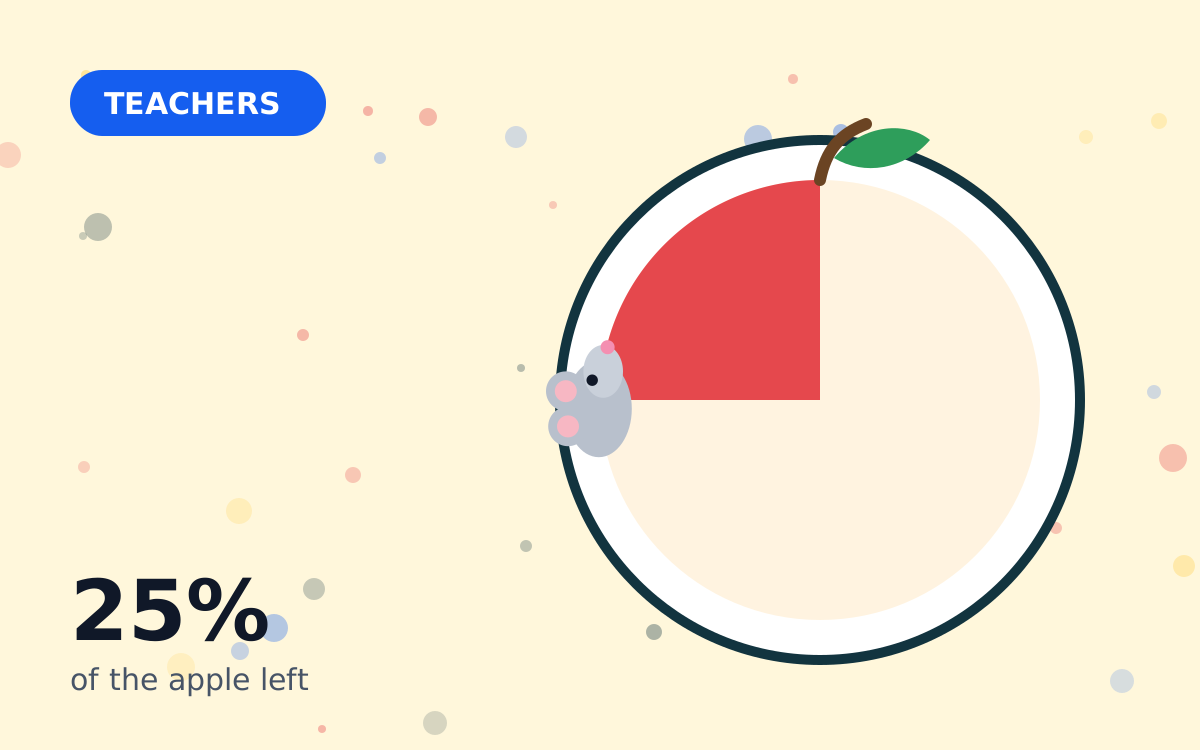
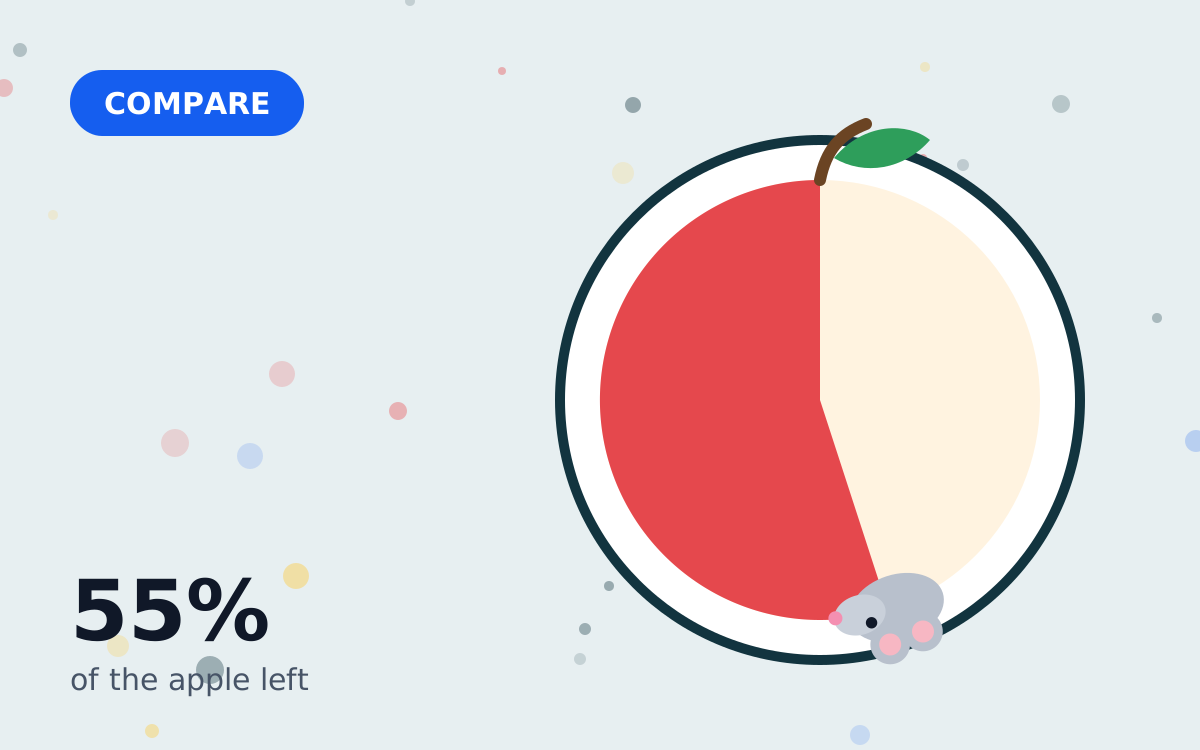
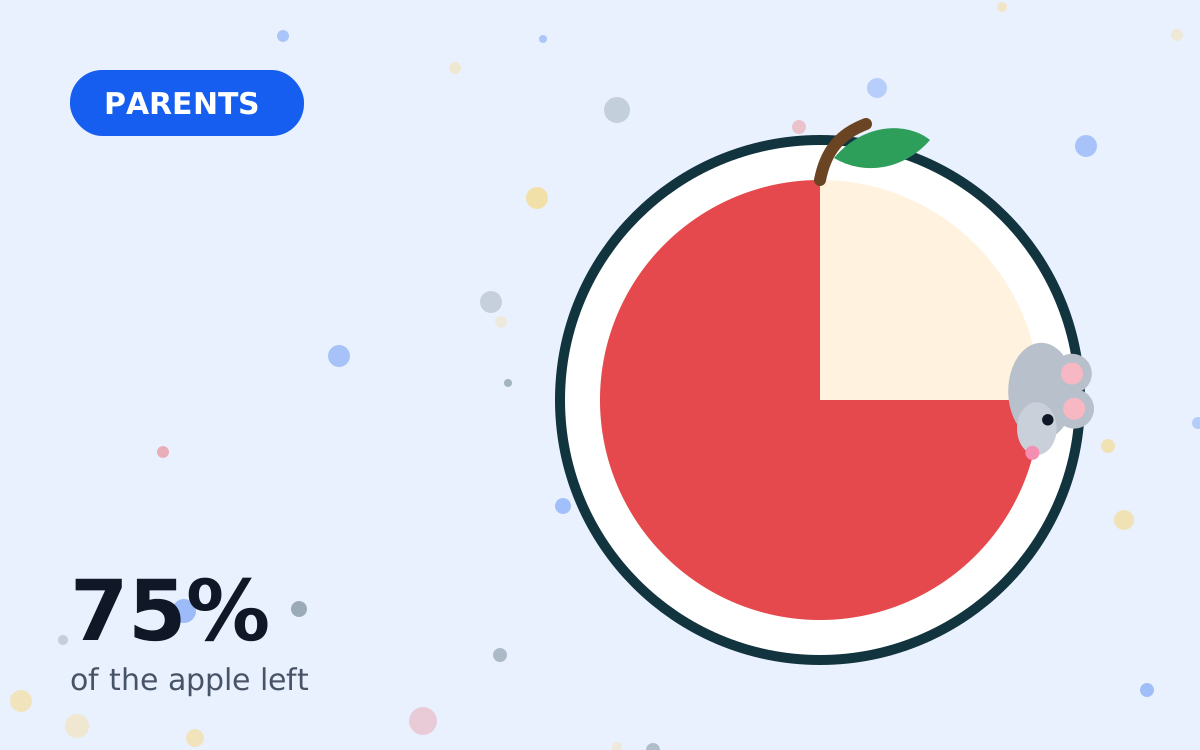
A visual timer turns time into an object that changes in front of you. When the apple in Mouse Timer is half gone, half the time has gone — no numbers or clock-reading required.
What makes visual timers useful
- Concrete: the amount left is something you can point at.
- Predictable: children can see the end coming, so it doesn't feel sudden.
- Neutral: the timer, not the adult, signals the end — which can make the moment feel less personal.
- Independent: children can check the timer themselves instead of asking.
- Calm: a slowly changing picture is gentler than flashing digits or a loud alarm.
Visual timers and visual schedules are widely used by teachers and in many learning-support settings for these reasons. They're a simple support, not a cure-all, and they work best alongside clear expectations.
A note on claims
Mouse Timer and our online tool are general timing aids. They aren't medical or therapeutic devices, and we don't claim they treat any condition. If you have questions about your child's development, attention or behaviour, talk to a qualified professional such as a paediatrician, teacher or educational psychologist.
Using a timer for transitions
- Announce it: “We have one apple of play left, then it's bath time.”
- Start the timer together. Let your child tap Start.
- Check in halfway: “Look, half the apple's gone.”
- Follow through when the apple is gone, calmly and consistently.
- Praise the switch, not just the waiting.
Building independence
Over time, many children start using the timer themselves — setting an apple for tooth brushing or taking turns with a sibling. Mouse Timer supports this by letting adults reduce the time choices, so a child can't accidentally pick a time that's far too long. Our online tool is handy for older children doing homework on a laptop: they can set their own 15 minute block and a 5 minute break.
Common mistakes to avoid
- Using it only as a threat. If the timer always means something bad is coming, children will dislike it. Use it for fun countdowns too.
- Extending “just this once”. Adding time when the apple is gone teaches that the timer doesn't really mean the end.
- Times that are too long. Start short — a child who succeeds with five minutes will trust the next ten.
- Hiding the screen. A timer only helps if it's visible.
Ideas by age
| Age | Ideas |
|---|---|
| Toddlers | 1–3 minute apples for turn-taking and hand washing |
| Pre-school | 5 minute warnings before transitions; tidy-up races |
| Early primary | 10 minute reading, getting dressed, screen-time endings |
| Older children | 15–25 minute homework blocks with short breaks |
Making waiting easier
Waiting is one of the hardest things for young children, partly because they can't tell whether it will last a moment or forever. A visual timer gives the wait a visible end. Use it in queues at home — waiting for a turn on the swing, waiting for dinner, waiting for a sibling to finish — and you'll often hear fewer “is it my turn yet?” questions. The apple makes the answer obvious.
Sharing and taking turns
Turn-taking disputes are common between siblings. Setting an apple for each turn makes the rule visible and fair: when the apple's gone, the toy or device passes on. Because both children can watch the same timer, there's less arguing about whether time is really up. Let the waiting child press Start for the next turn — it gives them something to do while they wait.
Ending screen time without a battle
Screen time often ends suddenly from a child's point of view: one moment they're mid-game, the next the device is gone. Starting a 5 or 10 minute apple before the end gives a clear warning. Agree in advance what happens when the apple is finished — save the game, put the tablet on the shelf — and follow through the same way every time.
Try it now
You can try the idea free in the online Mouse Timer, or install the official app from Google Play or the App Store. Start with a short, positive activity so the first experience of the mouse and apple is a happy one.